

Google Sheets is one of the most useful spreadsheet tools for students, freelancers, marketers, business owners, and professionals. It allows you to create spreadsheets, organize data, perform calculations, collaborate with others, and analyze information directly from your web browser.
However, many users only use basic features such as entering data and creating simple tables. By learning a few useful Google Sheets tips and tricks, you can save time, reduce repetitive work, and manage your data more efficiently.
In this guide, we’ll explore 15 practical Google Sheets tips that can help beginners and intermediate users work faster and smarter.
What Is Google Sheets?
Google Sheets is a cloud-based spreadsheet application from Google. It allows users to create and edit spreadsheets online and collaborate with other people in real time.
Unlike traditional spreadsheet software, Google Sheets automatically saves your work to Google Drive. You can also access your spreadsheets from different devices as long as you have access to your Google account.
Google Sheets is useful for many tasks, including:
- Managing business data
- Creating budgets
- Tracking expenses
- Managing leads
- Creating content calendars
- Tracking projects
- Analyzing marketing data
- Creating reports
- Managing customer information
For anyone working with data regularly, learning useful Google Sheets shortcuts and features can significantly improve productivity.
1. Use Keyboard Shortcuts
One of the easiest ways to work faster in Google Sheets is by learning keyboard shortcuts.
Instead of using your mouse for every action, shortcuts allow you to perform common tasks quickly.
Some useful shortcuts include:
- Ctrl + C – Copy
- Ctrl + V – Paste
- Ctrl + X – Cut
- Ctrl + Z – Undo
- Ctrl + F – Find
- Ctrl + A – Select all
- Ctrl + S – Save-related browser action
- Ctrl + Shift + V – Paste values only
If you regularly work with spreadsheets, learning even five or ten shortcuts can save considerable time.
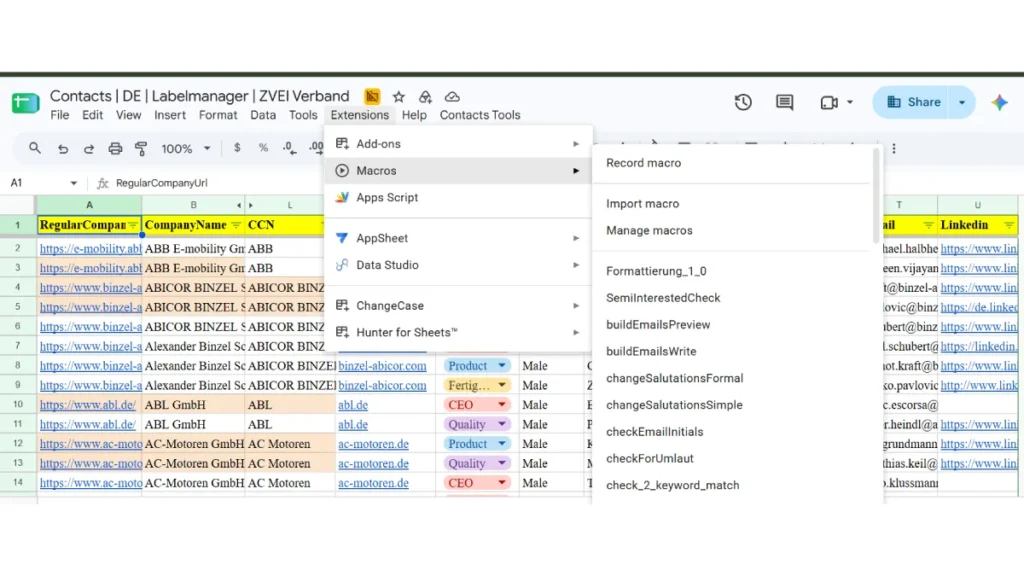
2. Use Freeze Rows and Columns
Large spreadsheets can become difficult to navigate because important headings disappear when you scroll.
Google Sheets provides a Freeze feature that allows you to keep specific rows or columns visible while scrolling.
For example, if your first row contains headings such as:
- Name
- Company
- Phone
- Status
you can freeze the first row.
To do this:
- Open your spreadsheet.
- Click View.
- Select Freeze.
- Choose 1 row or another option.
You can also freeze columns if your spreadsheet contains many fields.
This is especially useful for customer databases, sales reports, inventory sheets, and large datasets.
3. Use Conditional Formatting
Conditional formatting is a powerful feature that automatically changes the appearance of cells based on specific conditions.
For example, imagine you have a sales spreadsheet. You could highlight:
- Sales above $1,000 in one format
- Sales below $500 in another
- Overdue tasks with a warning format
- Duplicate information for review
To use conditional formatting:
- Select the cells.
- Click Format.
- Select Conditional formatting.
- Choose a condition.
- Select the formatting style.
- Click Done.
This makes important information easier to identify without manually checking every row.
4. Use Data Validation and Dropdown Lists
Dropdown menus can make spreadsheets easier to use and reduce data-entry mistakes.
For example, if you have a lead-tracking spreadsheet, you might create a dropdown with:
- New
- Contacted
- Qualified
- Follow-up
- Converted
Instead of typing the status manually every time, users can simply select an option from the dropdown.
To create a dropdown:
- Select the cells.
- Open Data.
- Choose Data validation or the relevant dropdown option.
- Add your options.
- Save the rule.
Dropdowns are particularly useful for project management, CRM tracking, content calendars, and task lists.

5. Learn Basic Google Sheets Formulas
Formulas are one of the most important parts of Google Sheets.
Even if you are a beginner, learning a few basic formulas can dramatically improve your productivity.
SUM
The SUM formula adds numbers together.
Example:
=SUM(B2:B20)
AVERAGE
The AVERAGE formula calculates the average value.
Example:
=AVERAGE(B2:B20)
COUNT
COUNT counts cells containing numbers.
Example:
=COUNT(B2:B20)
MAX
MAX identifies the highest value.
Example:
=MAX(B2:B20)
MIN
MIN identifies the lowest value.
Example:
=MIN(B2:B20)
These simple formulas are useful for budgets, sales reports, expenses, and performance tracking.
6. Use Autofill to Save Time
Autofill allows you to quickly copy formulas, values, or patterns into nearby cells.
For example, if you enter January, February, and March, Google Sheets can often recognize the pattern and continue the sequence.
You can also use autofill to copy formulas down a column.
Instead of manually entering the same formula hundreds of times, drag the small blue handle in the corner of the selected cell.
This is particularly useful when working with large datasets.
7. Remove Duplicate Data
Duplicate data can cause problems when you’re analyzing information.
For example, a lead list might accidentally contain the same email address several times.
Google Sheets provides a tool for removing duplicates.
To use it:
- Select your data range.
- Click Data.
- Choose Data cleanup.
- Select Remove duplicates.
- Choose the columns you want to check.
- Confirm the action.
Before removing duplicates from important data, it is a good idea to keep a backup copy of the original spreadsheet.
8. Use Filters to Find Information Quickly
Filters allow you to temporarily hide information that you don’t need to see.
Suppose you have a list of 2,000 leads and only want to see leads from a particular company or status.
You can create a filter and display only the relevant rows.
To create a filter:
- Select your dataset.
- Click Data.
- Select Create a filter.
- Click the filter icon in the relevant column.
- Choose the information you want to display.
Filters are extremely useful for marketing lists, customer databases, sales reports, and project management.
9. Use the SORT Function
The SORT function allows you to organize data automatically based on a selected column.
For example:
=SORT(A2:C20,2,TRUE)
This can sort the selected data based on the second column.
Sorting is useful when you want to organize:
- Products by price
- Leads by company
- Customers by name
- Sales by revenue
- Tasks by deadline
Instead of manually rearranging rows, formulas can help automate the process.
10. Use the IF Function
The IF function allows Google Sheets to return different results depending on whether a condition is true or false.
For example:
=IF(B2>=50,”Pass”,”Needs Improvement”)
This formula checks the value in B2.
If the value is 50 or higher, it displays Pass. Otherwise, it displays Needs Improvement.
The IF function can be useful for:
- Sales targets
- Task status
- Performance reports
- Budget tracking
- Lead qualification
- Project management
Once you understand IF, you can combine it with other formulas to create more powerful spreadsheets.
11. Use VLOOKUP or XLOOKUP
When working with large datasets, you may need to find information from another table.
Lookup functions can help you retrieve matching information.
For example, you might have a customer ID in one sheet and want to find the customer’s company name from another table.
Depending on your spreadsheet setup and available functions, you can use VLOOKUP or XLOOKUP for this type of task.
These functions are especially useful for business databases, sales reports, customer lists, and inventory management.
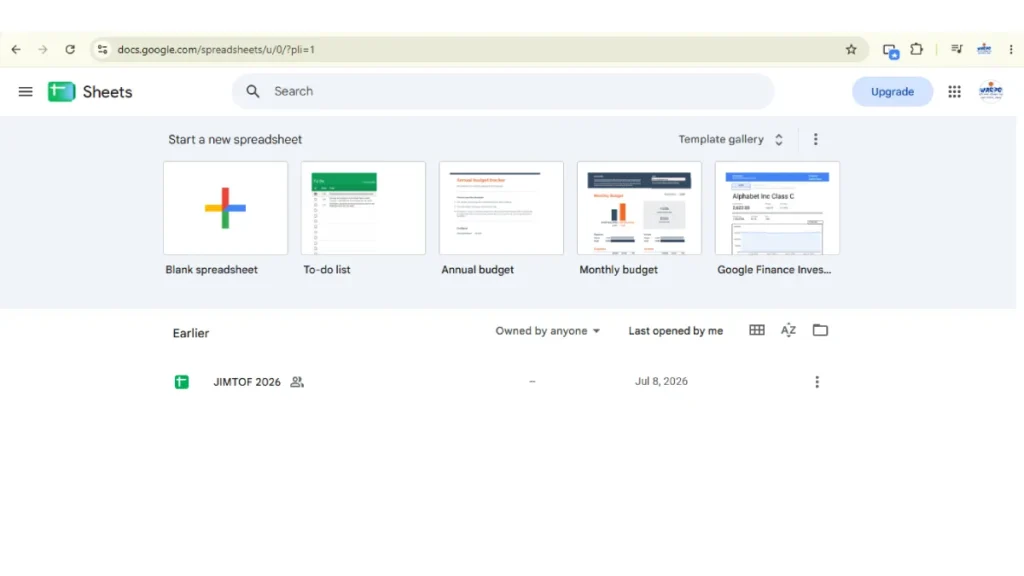
12. Create Charts and Graphs
Numbers are useful, but visual information can make data much easier to understand.
Google Sheets allows you to create different types of charts, including:
- Bar charts
- Column charts
- Line charts
- Pie charts
- Area charts
To create a chart:
- Select your data.
- Click Insert.
- Select Chart.
- Choose a chart type.
- Customize the chart.
For example, a business owner could create a monthly sales chart to understand changes in performance.
Charts can also be useful in reports and presentations.
13. Collaborate in Real Time
One of Google Sheets’ biggest advantages is real-time collaboration.
You can share a spreadsheet with other people and allow them to:
- View
- Comment
- Edit
Multiple users can work on the same spreadsheet at the same time.
This is useful for remote teams, students, agencies, freelancers, and businesses.
For example, a marketing team could use one Google Sheet to manage content ideas, keywords, publishing dates, and article status.
14. Use Comments for Team Communication
Comments can help teams communicate without changing the spreadsheet’s actual data.
For example, you could select a cell containing a customer’s information and add a comment asking a teammate to verify it.
Comments can also be useful for:
- Assigning tasks
- Requesting corrections
- Asking questions
- Reviewing reports
- Discussing spreadsheet data
This can reduce the need for separate messages about small spreadsheet-related issues.
15. Protect Important Sheets and Ranges
If several people have access to a spreadsheet, you may want to prevent accidental changes to important information.
Google Sheets provides options for protecting sheets and ranges.
You can use protection when you want to prevent users from changing:
- Important formulas
- Headers
- Calculated values
- Reference data
- Specific cells
This can be especially useful for business spreadsheets where multiple people are entering information.
Bonus Google Sheets Tips for Beginners
Here are a few additional tips that can make your workflow easier.
Keep Your Spreadsheet Organized
Use clear column names and consistent formatting. Avoid putting unrelated information into the same table.
Use Separate Sheets for Different Data
Instead of putting everything into one giant sheet, consider creating separate tabs for customers, sales, expenses, and reports.
Use Meaningful File Names
A name such as September_2026_Lead_Tracking is much easier to understand than Sheet1.
Make Regular Backups
Although Google Sheets saves changes automatically, keeping organized copies of important business data can still be useful.
Avoid Unnecessary Formatting
Too many colors, fonts, and styles can make a spreadsheet difficult to read. Keep the design simple and consistent.
Why Google Sheets Is Useful for Digital Marketers
Google Sheets can be particularly valuable for digital marketers.
For example, you can use it to manage:
- Keyword research
- SEO content calendars
- Backlink lists
- Lead generation
- Email campaigns
- Social media planning
- Competitor research
- Content publishing schedules
A simple spreadsheet can become a lightweight marketing management system when formulas, filters, dropdowns, and charts are combined.


Pingback: Data Entry Freelancing: A Complete Guide for Beginners